
1. Overview
In this document, I am sharing all the steps I used to create a demo or test environment of a storage space with storage tiers on Windows Server 2012 R2 Preview so that you can experiment with some of the new technologies yourself. You need only a single computer with one SSD and one HDD for this demo (the specs are provided below).
If you’re not familiar with Storage Spaces or storage tiers (also known as Storage Spaces Tiering), I would strong encourage you to review the Storage Spaces Overview and TechEd 2013 talks on “Storage Spaces”, which you can find below:
- TechNet Article – Storage Spaces Overview
- TechEd 2013 – Storage Spaces: What’s New in Windows Server 2012 R2
- TechEd 2013 – Deploying Windows Server 2012 R2 File Services for Exceptional $/IOPS
- Technet Wiki – Storage Spaces – Designing for Performance
2. Simulated environment with limited hardware
In a typical storage tier configuration (non-clustered), you have a JBOD with a few hard disks, some being SSDs and some being HDD. For instance, you could have 4 SSDs and 8 HDDs. You would then combine all 12 disks into a pool, create the two tiers (SSD and HDD) and then create spaces (virtual disks) on top of those. Here’s what it looks like:
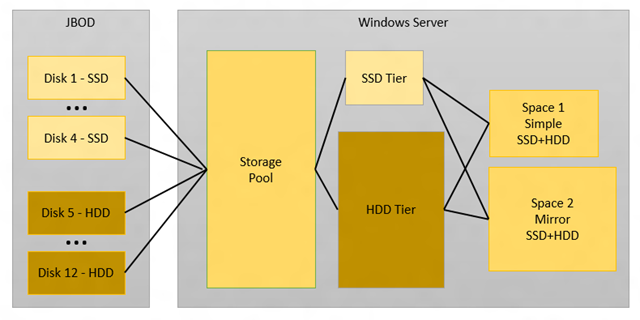
However, if you’re just experimenting with this feature or trying to learn how to configure it, the investment in the hardware (1 JBOD, 4 SSDs, 8 HDDs, SAS HBA, cables) might be holding you back. So, in this blog post, we’ll show how to configure storage tiers using just one SSD and one HDD, with the help of Hyper-V. Here’s what the simulated environment looks like:

As you can see in the diagram, the basic goal here is to simulate a tiered storage space using 4 (simulated) SSDs and 8 (simulated) HDDs. We’ll show the Windows PowerShell cmdlets to create the VHDs and the VM required to simulate the environment. Then, inside the guest, we’ll create the pool, storage tiers and storage spaces (both simple and mirrored). To verify it’s all working, we’ll create some test files and run a simulated SQL workload. We’ll also look into the storage tier maintenance tasks and extending an existing storage space.
3. Required Hardware and Software, plus Disclaimers
You will need the following hardware to perform the steps described here:
- One computer capable of running the Windows Server 2012 R2 Preview and Hyper-V.
- On that computer, one SSD with at least 50GB of free space available.
- On that computer, one HDD with at least 250GB of free space available.
- As required by Hyper-V, enable the virtualization settings in the BIOS. For details, check this blog post: http://blogs.technet.com/b/iftekhar/archive/2010/08/09/enable-hardware-settings-in-bios-to-run-hyper-v.aspx and http://technet.microsoft.com/en-us/library/cc731898.aspx
- For this setup, the computer should have at least 4GB of RAM.
- An 8GB USB stick, if you’re installing Windows Server from USB and copying the downloaded software around
You will need the following software to perform the steps described here:
- Windows Server 2012 R2 Preview from http://technet.microsoft.com/en-US/evalcenter/dn205286.aspx
- SQLIO, as described at http://blogs.technet.com/b/josebda/archive/2013/03/25/sqlio-powershell-and-storage-performance-measuring-iops-throughput-and-latency-for-both-local-disks-and-smb-file-shares.aspx
Notes and disclaimers:
- A certain familiarity with Windows administration and configuration is assumed. If you’re new to Windows, this document is not for you. Sorry…
- If you are asked a question or required to perform an action that you do not see described in these steps, go with the default option.
- There are usually several ways to perform a specific configuration or administration task. What I describe here is one of those many ways. It’s not necessarily the best way, just the one I personally like best at the moment.
- For the most part, I use PowerShell to configure the systems. You can also use a graphical interface instead, but I did not describe those steps here.
- The specific Storage Spaces configuration shown in this blog post is not supported. Microsoft Support will only answer questions and assist in troubleshooting configurations where Storage Spaces uses a physical machine (not a VM) and uses one of the certified JBOD hardware solutions (see http://www.windowsservercatalog.com/results.aspx?&chtext=&cstext=&csttext=&chbtext=&bCatID=1642&cpID=0&avc=10&ava=0&avq=0&OR=1&PGS=25&ready=0)
- Because of the item above, the configuration described here should only be used for demos, testing or learning environments.
4. Configure the physical host
# Preparation steps: Install Window Server 2012 R2 Preview
# Install required roles and features, restart at the end
Install-WindowsFeature Hyper-V -IncludeManagementTools –Restart
# Create 4 VHDX files on the SSD with 10GB each
1..4 | % { New-VHD -Path D:VMSVMA_SSD_$_.VHDX -Fixed –Size 10GB}
# Create 8 VHDX files on the HDD with 30GB each
1..8 | % { New-VHD -Path E:VMSVMA_HDD_$_.VHDX -Fixed –Size 30GB}
# Create a new VM. Assumes you have an Windows Server 2012 R2 OS VHDX in place
New-VM -Name VMA -Path D:VMS –VHDPath D:VMSVMA_OS.VHDX -Memory 2GB
# Add all data disks to the VM
1..4 | % { Add-VMHardDiskDrive -VMName VMA -ControllerType SCSI -Path D:VMSVMA_SSD_$_.VHDX }
1..8 | % { Add-VMHardDiskDrive -VMName VMA -ControllerType SCSI -Path E:VMSVMA_HDD_$_.VHDX }
# Start the VM
Start-VM VMA
5. Check VM configuration (from the Host, with output)
PS C:>Get-VM VMA

Name State   CPUUsage(%) MemoryAssigned(M) Uptime   Status
---- -----   ----------- ----------------- ------   ------
VMA  Running 0           2048              00:01:52 Operating normally

PS C:>Get-VM VMA | Get-VMHardDiskDrive

VMName ControllerType ControllerNumber ControllerLocation DiskNumber Path
------ -------------- ---------------- ------------------ ---------- ----
VMA    IDE            0                0                             D:VMSVMA_OS.VHDX
VMA    SCSI           0                0                             D:VMSVMA_SSD_1.VHDX
VMA    SCSI           0                1                             D:VMSVMA_SSD_2.VHDX
VMA    SCSI           0                2                             D:VMSVMA_SSD_3.VHDX
VMA    SCSI           0                3                             D:VMSVMA_SSD_4.VHDX
VMA    SCSI           0                4                             E:VMSVMA_HDD_1.VHDX
VMA    SCSI           0                5                             E:VMSVMA_HDD_2.VHDX
VMA    SCSI           0                6                             E:VMSVMA_HDD_3.VHDX
VMA    SCSI           0                7                             E:VMSVMA_HDD_4.VHDX
VMA    SCSI           0                8                             E:VMSVMA_HDD_5.VHDX
VMA    SCSI           0                9                             E:VMSVMA_HDD_6.VHDX
VMA    SCSI           0                10                            E:VMSVMA_HDD_7.VHDX
VMA    SCSI           0                11                            E:VMSVMA_HDD_8.VHDX
6. Check VM configuration (from the Guest, with output)
PS C:> Get-PhysicalDisk | Sort Size | FT DeviceId, FriendlyName, CanPool, Size, MediaType -AutoSize
DeviceId FriendlyName CanPool Size MediaType
——– ———— ——- —- ———
2 PhysicalDisk2 True 10737418240 UnSpecified
4 PhysicalDisk4 True 10737418240 UnSpecified
3 PhysicalDisk3 True 10737418240 UnSpecified
1 PhysicalDisk1 True 10737418240 UnSpecified
12 PhysicalDisk12 True 32212254720 UnSpecified
11 PhysicalDisk11 True 32212254720 Unspecified
7 PhysicalDisk7 True 32212254720 Unspecified
6 PhysicalDisk6 True 32212254720 Unspecified
5 PhysicalDisk5 True 32212254720 Unspecified
10 PhysicalDisk10 True 32212254720 UnSpecified
9 PhysicalDisk9 True 32212254720 Unspecified
8 PhysicalDisk8 True 32212254720 Unspecified
0 PhysicalDisk0 False 42949672960 Unspecified
PS C:> Get-PhysicalDisk -CanPool $true | ? Size -lt 20GB | Sort Size | FT -AutoSize
FriendlyName CanPool OperationalStatus HealthStatus Usage Size
———— ——- —————– ———— —– —-
PhysicalDisk4 True OK Healthy Auto-Select 10 GB
PhysicalDisk2 True OK Healthy Auto-Select 10 GB
PhysicalDisk1 True OK Healthy Auto-Select 10 GB
PhysicalDisk3 True OK Healthy Auto-Select 10 GB
PS C:> Get-PhysicalDisk -CanPool $true | ? Size -gt 20GB | Sort Size | FT -AutoSize
FriendlyName CanPool OperationalStatus HealthStatus Usage Size
———— ——- —————– ———— —– —-
PhysicalDisk6 True OK Healthy Auto-Select 30 GB
PhysicalDisk11 True OK Healthy Auto-Select 30 GB
PhysicalDisk12 True OK Healthy Auto-Select 30 GB
PhysicalDisk7 True OK Healthy Auto-Select 30 GB
PhysicalDisk5 True OK Healthy Auto-Select 30 GB
PhysicalDisk10 True OK Healthy Auto-Select 30 GB
PhysicalDisk8 True OK Healthy Auto-Select 30 GB
PhysicalDisk9 True OK Healthy Auto-Select 30 GB
7. Configure media type for virtual SAS disks
# Create Storage Pool
$s = Get-StorageSubSystem
New-StoragePool -StorageSubSystemId $s.UniqueId -FriendlyName Pool1 -PhysicalDisks (Get-PhysicalDisk -CanPool $true)
# Configure media type for virtual SAS disks
Get-StoragePool Pool1 | Get-PhysicalDisk | ? Size -lt 20GB | Set-PhysicalDisk –MediaType SSD
Get-StoragePool Pool1 | Get-PhysicalDisk | ? Size -gt 20GB | Set-PhysicalDisk –MediaType HDD
8. Check media type configuration (with output)
PS C:> Get-StoragePool Pool1
FriendlyName OperationalStatus HealthStatus IsPrimordial IsReadOnly
———— —————– ———— ———— ———-
Pool1 OK Healthy False False
PS C:> Get-StoragePool Pool1 | Get-PhysicalDisk | Sort Size | FT –AutoSize
FriendlyName CanPool OperationalStatus HealthStatus Usage Size
———— ——- —————– ———— —– —-
PhysicalDisk3 False OK Healthy Auto-Select 9.25 GB
PhysicalDisk2 False OK Healthy Auto-Select 9.25 GB
PhysicalDisk1 False OK Healthy Auto-Select 9.25 GB
PhysicalDisk4 False OK Healthy Auto-Select 9.25 GB
PhysicalDisk11 False OK Healthy Auto-Select 29.25 GB
PhysicalDisk12 False OK Healthy Auto-Select 29.25 GB
PhysicalDisk7 False OK Healthy Auto-Select 29.25 GB
PhysicalDisk6 False OK Healthy Auto-Select 29.25 GB
PhysicalDisk9 False OK Healthy Auto-Select 29.25 GB
PhysicalDisk5 False OK Healthy Auto-Select 29.25 GB
PhysicalDisk8 False OK Healthy Auto-Select 29.25 GB
PhysicalDisk10 False OK Healthy Auto-Select 29.25 GB
PS C:> Get-StoragePool Pool1 | Get-PhysicalDisk | Sort Size | FT FriendlyName, Size, MediaType, HealthStatus, OperationalStatus -AutoSize
FriendlyName Size MediaType HealthStatus OperationalStatus
———— —- ——— ———— —————–
PhysicalDisk3 9932111872 SSD Healthy OK
PhysicalDisk2 9932111872 SSD Healthy OK
PhysicalDisk1 9932111872 SSD Healthy OK
PhysicalDisk4 9932111872 SSD Healthy OK
PhysicalDisk11 31406948352 HDD Healthy OK
PhysicalDisk12 31406948352 HDD Healthy OK
PhysicalDisk7 31406948352 HDD Healthy OK
PhysicalDisk6 31406948352 HDD Healthy OK
PhysicalDisk9 31406948352 HDD Healthy OK
PhysicalDisk5 31406948352 HDD Healthy OK
PhysicalDisk8 31406948352 HDD Healthy OK
PhysicalDisk10 31406948352 HDD Healthy OK
PS C:> Get-StoragePool Pool1 | Get-PhysicalDisk | Group MediaType, Size | Sort Name | FT -AutoSize
Count Name Group
—– —- —–
8 HDD, 31406948352 {MSFT_PhysicalDisk (ObjectId = “{1}\WIN-T5PORQGQECNroot/Microsoft/Win…), MSFT_PhysicalDis…
4 SSD, 9932111872 {MSFT_PhysicalDisk (ObjectId = “{1}\WIN-T5PORQGQECNroot/Microsoft/Win…), MSFT_PhysicalDis…
PS C:> Get-StoragePool Pool1 | FL Size, AllocatedSize
Size          : 290984034304
AllocatedSize : 3221225472
9. Configure Tiers
# Configure two tiers
Get-StoragePool Pool1 | New-StorageTier –FriendlyName SSDTier –MediaType SSD
Get-StoragePool Pool1 | New-StorageTier –FriendlyName HDDTier –MediaType HDD
10. Check Tiers configuration (with output)
PS C:> Get-StorageTier | FT FriendlyName, MediaType, Size -AutoSize
FriendlyName MediaType Size
———— ——— —-
SSDTier SSD 0
HDDTier HDD 0
PS C:> Get-StoragePool Pool1 | FL Size, AllocatedSize
Size : 290984034304
AllocatedSize : 3221225472
PS C:> Get-StorageTierSupportedSize SSDTier -ResiliencySettingName Simple | FT -AutoSize
SupportedSizes TierSizeMin TierSizeMax TierSizeDivisor
————– ———– ———– —————
{} 4294967296 34359738368 4294967296
PS C:> Get-StorageTierSupportedSize SSDTier -ResiliencySettingName Mirror | FT -AutoSize
SupportedSizes TierSizeMin TierSizeMax TierSizeDivisor
————– ———– ———– —————
{} 2147483648 17179869184 2147483648
PS C:> Get-StorageTierSupportedSize HDDTier -ResiliencySettingName Simple | FT -AutoSize
SupportedSizes TierSizeMin TierSizeMax TierSizeDivisor
————– ———– ———– —————
{} 8589934592 249108103168 8589934592
PS C:> Get-StorageTierSupportedSize HDDTier -ResiliencySettingName Mirror | FT -AutoSize
SupportedSizes TierSizeMin TierSizeMax TierSizeDivisor
————– ———– ———– —————
{} 4294967296 124554051584 4294967296
11. Resiliency Settings and Spaces
# Configure resiliency settings
Get-StoragePool Pool1 | Set-ResiliencySetting -Name Simple -NumberOfColumnsDefault 4
Get-StoragePool Pool1 | Set-ResiliencySetting -Name Mirror -NumberOfColumnsDefault 2
# Create simple and mirrored spaces with tiering
$SSD = Get-StorageTier -FriendlyName SSDTier
$HDD = Get-StorageTier -FriendlyName HDDTier
Get-StoragePool Pool1 | New-VirtualDisk -FriendlyName Space1 -ResiliencySettingName Simple –StorageTiers $SSD, $HDD -StorageTierSizes 8GB, 32GB -WriteCacheSize 1GB
Get-StoragePool Pool1 | New-VirtualDisk -FriendlyName Space2 -ResiliencySettingName Mirror -StorageTiers $SSD, $HDD -StorageTierSizes 8GB, 32GB –WriteCacheSize 1GB
12. Check Storage Spaces configuration (with output)
PS C:> Get-StoragePool Pool1 | Get-ResiliencySetting | FT -AutoSize
Name NumberOfDataCopies PhysicalDiskRedundancy NumberOfColumns Interleave
—- —————— ———————- ————— ———-
Simple 1 0 4 262144
Mirror 2 1 2 262144
Parity 1 1 Auto 262144
PS C:> Get-VirtualDisk | FT -AutoSize
FriendlyName ResiliencySettingName OperationalStatus HealthStatus IsManualAttach Size
———— ——————— —————– ———— ————– —-
Space1 Simple OK Healthy False 40 GB
Space2 Mirror OK Healthy False 40 GB
PS C:> Get-StorageTier | FT FriendlyName, MediaType, Size -AutoSize
FriendlyName MediaType Size
———— ——— —-
SSDTier SSD 0
HDDTier HDD 0
Space1_SSDTier SSD 8589934592
Space1_HDDTier HDD 34359738368
Space2_SSDTier SSD 8589934592
Space2_HDDTier HDD 34359738368
PS C:> Get-StoragePool Pool1 | FL Size, AllocatedSize
Size : 290984034304
AllocatedSize : 136365211648
PS C:> Get-StorageTierSupportedSize SSDTier -ResiliencySettingName Simple | FT -AutoSize
SupportedSizes TierSizeMin TierSizeMax TierSizeDivisor
————– ———– ———– —————
{} 4294967296 4294967296 4294967296
PS C:> Get-StorageTierSupportedSize SSDTier -ResiliencySettingName Mirror | FT -AutoSize
SupportedSizes TierSizeMin TierSizeMax TierSizeDivisor
————– ———– ———– —————
{} 2147483648 2147483648 2147483648
PS C:> Get-StorageTierSupportedSize HDDTier -ResiliencySettingName Simple | FT -AutoSize
SupportedSizes TierSizeMin TierSizeMax TierSizeDivisor
————– ———– ———– —————
{} 4294967296 146028888064 4294967296
PS C:> Get-StorageTierSupportedSize HDDTier -ResiliencySettingName Mirror | FT -AutoSize
SupportedSizes TierSizeMin TierSizeMax TierSizeDivisor
————– ———– ———– —————
{} 2147483648 73014444032 2147483648
Note: 136GB left on the SSD Tier. 68GB available if mirroring.
13. Create Partitions and Volumes
# Configure volume “F” on Space1
Get-VirtualDisk Space1 | Get-Disk | Set-Disk -IsReadOnly 0
Get-VirtualDisk Space1 | Get-Disk | Set-Disk -IsOffline 0
Get-VirtualDisk Space1 | Get-Disk | Initialize-Disk -PartitionStyle GPT
Get-VirtualDisk Space1 | Get-Disk | New-Partition -DriveLetter “F” -UseMaximumSize
Initialize-Volume -DriveLetter “F” -FileSystem NTFS -Confirm:$false
# Configure volume “G” on Space2
Get-VirtualDisk Space2 | Get-Disk | Set-Disk -IsReadOnly 0
Get-VirtualDisk Space2 | Get-Disk | Set-Disk -IsOffline 0
Get-VirtualDisk Space2 | Get-Disk | Initialize-Disk -PartitionStyle GPT
Get-VirtualDisk Space2 | Get-Disk | New-Partition -DriveLetter “G” -UseMaximumSize
Initialize-Volume -DriveLetter “G” -FileSystem NTFS -Confirm:$false
14. Check Partitions and Volumes (with output)
PS C:> Get-Partition | ? DriveLetter -ge “F” | FT -AutoSize
   Disk Number: 13


PartitionNumber DriveLetter Offset        Size Type

--------------- ----------- ------        ---- ----

2               F           135266304 39.87 GB Basic


   Disk Number: 14


PartitionNumber DriveLetter Offset        Size Type

--------------- ----------- ------        ---- ----

2               G           135266304 39.87 GB Basic


PS C:> Get-Volume | ? DriveLetter -ge "F" | FT -AutoSize


DriveLetter FileSystemLabel FileSystem DriveType HealthStatus SizeRemaining     Size

----------- --------------- ---------- --------- ------------ -------------     ----

F                           NTFS       Fixed     Healthy           39.75 GB 39.87 GB

G                           NTFS       Fixed     Healthy           39.75 GB 39.87 GB
15. Create Test Files
# Create 3 files on volume “F”, place them on different tiers
1..3 | % {
fsutil file createnew f:file$_.dat (4GB)
fsutil file setvaliddata f:file$_.dat (4GB)
}
Set-FileStorageTier -FilePath f:file1.dat -DesiredStorageTierFriendlyName Space1_SSDTier
Set-FileStorageTier -FilePath f:file2.dat -DesiredStorageTierFriendlyName Space1_HDDTier
Get-FileStorageTier -VolumeDriveLetter F
# Create 3 files on volume “G”, place them on different tiers
1..3 | % {
fsutil file createnew g:file$_.dat (4GB)
fsutil file setvaliddata g:file$_.dat (4GB)
}
Set-FileStorageTier -FilePath g:file1.dat -DesiredStorageTierFriendlyName Space2_SSDTier
Set-FileStorageTier -FilePath g:file2.dat -DesiredStorageTierFriendlyName Space2_HDDTier
Get-FileStorageTier -VolumeDriveLetter G
16. Check Test Files (with output)
PS C:> Dir F:


    Directory: f:


Mode                LastWriteTime     Length Name

----                -------------     ------ ----

-a---         8/21/2013  10:09 AM 4294967296 file1.dat

-a---         8/21/2013  10:09 AM 4294967296 file2.dat

-a---         8/21/2013  10:09 AM 4294967296 file3.dat


PS C:> Dir G:


    Directory: g:


Mode                LastWriteTime     Length Name

----                -------------     ------ ----

-a---         8/21/2013  10:08 AM 4294967296 file1.dat

-a---         8/21/2013  10:08 AM 4294967296 file2.dat

-a---         8/21/2013  10:08 AM 4294967296 file3.dat


PS C:sqlio> Get-Volume | ? DriveLetter -ge "F" | FT -AutoSize


DriveLetter FileSystemLabel FileSystem DriveType HealthStatus SizeRemaining     Size

----------- --------------- ---------- --------- ------------ -------------     ----

F                           NTFS       Fixed     Healthy           27.75 GB 39.87 GB

G                           NTFS       Fixed     Healthy           27.75 GB 39.87 GB


PS C:> Get-FileStorageTier -VolumeDriveLetter F | FT -AutoSize


FilePath     DesiredStorageTierName PlacementStatus    State

--------     ---------------------- ---------------    -----

F:file1.dat Space1_SSDTier         Completely on tier OK

F:file2.dat Space1_HDDTier         Partially on tier  Pending


PS C:> Get-FileStorageTier -VolumeDriveLetter G | FT -AutoSize


FilePath     DesiredStorageTierName PlacementStatus    State

--------     ---------------------- ---------------    -----

G:file1.dat Space2_SSDTier         Completely on tier OK

G:file2.dat Space2_HDDTier         Partially on tier  Pending
17. Tasks for Storage Tiering
# Check tasks used by Storage Tiering
Get-ScheduledTask -TaskName *Tier* | FT –AutoSize
Get-ScheduledTask -TaskName *Tier* | Get-ScheduledTaskInfo
# Manually running the “Storage Tiers Optimization” task
Get-ScheduledTask -TaskName “Storage Tiers Optimization” | Start-ScheduledTask
18. Tasks for Storage Tiering (with Output)
PS C:> Get-ScheduledTask -TaskName *Tier* | FT –AutoSize
TaskPath TaskName State
——– ——– —–
MicrosoftWindowsStorage Tiers Management Storage Tiers Management Initialization Ready
MicrosoftWindowsStorage Tiers Management Storage Tiers Optimization Ready
PS C:> Get-ScheduledTask -TaskName *Tier* | Get-ScheduledTaskInfo
LastRunTime :
LastTaskResult : 1
NextRunTime : 8/22/2013 1:00:00 AM
NumberOfMissedRuns : 0
TaskName : Storage Tiers Optimization
TaskPath : MicrosoftWindowsStorage Tiers Management
PSComputerName :
LastRunTime : 8/21/2013 11:18:18 AM
LastTaskResult : 0
NextRunTime :
NumberOfMissedRuns : 0
TaskName : Storage Tiers Management Initialization
TaskPath : MicrosoftWindowsStorage Tiers Management
PSComputerName :
PS C:> Get-ScheduledTask -TaskName “Storage Tiers Optimization” | Start-ScheduledTask
PS C:> Get-ScheduledTask -TaskName “Storage Tiers Optimization” | Get-ScheduledTaskInfo
LastRunTime : 8/21/2013 12:11:11 PM
LastTaskResult : 267009
NextRunTime : 8/22/2013 1:00:00 AM
NumberOfMissedRuns : 0
TaskName : Storage Tiers Optimization
TaskPath : MicrosoftWindowsStorage Tiers Management
PSComputerName :
19. Running SQLIO
# These commands assume that the SQLIO2.EXE file was copied to the C:SQLIO folder
# SQLIO workload 1 : 30 seconds, random, read, 8KB, 4 thread, 16 outstanding IOs, no buffering
# SQLIO workload 2 : 30 seconds, sequential, read, 512KB, 4 thread, 4 outstanding IOs, no buffering
# Check file location on tiers for volume F:
Get-FileStorageTier -VolumeDriveLetter F | FT -AutoSize
# Running SQLIO on F:, using File1 (HDD tier), File2 (HDD tier) and File 3 (unspecified tier)
c:sqliosqlio2.exe -s30 -frandom -kR -b8 -t4 -o16 -BN f:file1.dat
c:sqliosqlio2.exe -s30 -frandom -kR -b8 -t4 -o16 -BN f:file2.dat
c:sqliosqlio2.exe -s30 -frandom -kR -b8 -t4 -o16 -BN f:file3.dat
c:sqliosqlio2.exe -s30 -fsequential -kR -b512 -t4 -o4 -BN f:file1.dat
c:sqliosqlio2.exe -s30 -fsequential -kR -b512 -t4 -o4 -BN f:file2.dat
c:sqliosqlio2.exe -s30 -fsequential -kR -b512 -t4 -o4 -BN f:file3.dat
# Check file location on tiers for volume G:
Get-FileStorageTier -VolumeDriveLetter G | FT -AutoSize
# Running SQLIO on G:, using File1 (HDD tier), File2 (HDD tier) and File 3 (unspecified tier)
c:sqliosqlio2.exe -s30 -frandom -kR -b8 -t4 -o16 -BN g:file1.dat
c:sqliosqlio2.exe -s30 -frandom -kR -b8 -t4 -o16 -BN g:file2.dat
c:sqliosqlio2.exe -s30 -frandom -kR -b8 -t4 -o16 -BN g:file3.dat
c:sqliosqlio2.exe -s30 -fsequential -kR -b512 -t4 -o4 -BN g:file1.dat
c:sqliosqlio2.exe -s30 -fsequential -kR -b512 -t4 -o4 -BN g:file2.dat
c:sqliosqlio2.exe -s30 -fsequential -kR -b512 -t4 -o4 -BN g:file3.dat
20. Running SQLIO (with Output)
PS C:> Get-FileStorageTier -VolumeDriveLetter F | FT -AutoSize
FilePath DesiredStorageTierName PlacementStatus State
——– ———————- ————— —–
F:file1.dat Space1_SSDTier Completely on tier OK
F:file2.dat Space1_HDDTier Completely on tier OK
PS C:> c:sqliosqlio2.exe -s30 -frandom -kR -b8 -t4 -o16 -BN f:file1.dat
sqlio v2.15. 64bit_SG
4 threads reading for 30 secs to file f:file1.dat
using 8KB random IOs
enabling multiple I/Os per thread with 16 outstanding
buffering set to not use file nor disk caches (as is SQL Server)
using current size: 4096 MB for file: f:file1.dat
initialization done
CUMULATIVE DATA:
throughput metrics:
IOs/sec: 35745.63
MBs/sec: 279.26
PS C:> c:sqliosqlio2.exe -s30 -frandom -kR -b8 -t4 -o16 -BN f:file2.dat
sqlio v2.15. 64bit_SG
4 threads reading for 30 secs to file f:file2.dat
using 8KB random IOs
enabling multiple I/Os per thread with 16 outstanding
buffering set to not use file nor disk caches (as is SQL Server)
using current size: 4096 MB for file: f:file2.dat
initialization done
CUMULATIVE DATA:
throughput metrics:
IOs/sec: 141.57
MBs/sec: 1.10
PS C:> c:sqliosqlio2.exe -s30 -frandom -kR -b8 -t4 -o16 -BN f:file3.dat
sqlio v2.15. 64bit_SG
4 threads reading for 30 secs to file f:file3.dat
using 8KB random IOs
enabling multiple I/Os per thread with 16 outstanding
buffering set to not use file nor disk caches (as is SQL Server)
using current size: 4096 MB for file: f:file3.dat
initialization done
CUMULATIVE DATA:
throughput metrics:
IOs/sec: 384.86
MBs/sec: 3.00
PS C:> c:sqliosqlio2.exe -s30 -fsequential -kR -b512 -t4 -o4 -BN f:file1.dat
sqlio v2.15. 64bit_SG
4 threads reading for 30 secs to file f:file1.dat
using 512KB sequential IOs
enabling multiple I/Os per thread with 4 outstanding
buffering set to not use file nor disk caches (as is SQL Server)
using current size: 4096 MB for file: f:file1.dat
initialization done
CUMULATIVE DATA:
throughput metrics:
IOs/sec: 998.25
MBs/sec: 499.12
PS C:> c:sqliosqlio2.exe -s30 -fsequential -kR -b512 -t4 -o4 -BN f:file2.dat
sqlio v2.15. 64bit_SG
4 threads reading for 30 secs to file f:file2.dat
using 512KB sequential IOs
enabling multiple I/Os per thread with 4 outstanding
buffering set to not use file nor disk caches (as is SQL Server)
using current size: 4096 MB for file: f:file2.dat
initialization done
CUMULATIVE DATA:
throughput metrics:
IOs/sec: 81.30
MBs/sec: 40.65
PS C:> c:sqliosqlio2.exe -s30 -fsequential -kR -b512 -t4 -o4 -BN f:file3.dat
sqlio v2.15. 64bit_SG
4 threads reading for 30 secs to file f:file3.dat
using 512KB sequential IOs
enabling multiple I/Os per thread with 4 outstanding
buffering set to not use file nor disk caches (as is SQL Server)
using current size: 4096 MB for file: f:file3.dat
initialization done
CUMULATIVE DATA:
throughput metrics:
IOs/sec: 148.51
MBs/sec: 74.25
PS C:> Get-FileStorageTier -VolumeDriveLetter G | FT -AutoSize
FilePath DesiredStorageTierName PlacementStatus State
——– ———————- ————— —–
G:file1.dat Space2_SSDTier Completely on tier OK
G:file2.dat Space2_HDDTier Completely on tier OK
PS C:> c:sqliosqlio2.exe -s30 -frandom -kR -b8 -t4 -o16 -BN g:file1.dat
sqlio v2.15. 64bit_SG
4 threads reading for 30 secs to file g:file1.dat
using 8KB random IOs
enabling multiple I/Os per thread with 16 outstanding
buffering set to not use file nor disk caches (as is SQL Server)
using current size: 4096 MB for file: g:file1.dat
initialization done
CUMULATIVE DATA:
throughput metrics:
IOs/sec: 35065.17
MBs/sec: 273.94
PS C:> c:sqliosqlio2.exe -s30 -frandom -kR -b8 -t4 -o16 -BN g:file2.dat
sqlio v2.15. 64bit_SG
4 threads reading for 30 secs to file g:file2.dat
using 8KB random IOs
enabling multiple I/Os per thread with 16 outstanding
buffering set to not use file nor disk caches (as is SQL Server)
using current size: 4096 MB for file: g:file2.dat
initialization done
CUMULATIVE DATA:
throughput metrics:
IOs/sec: 138.98
MBs/sec: 1.08
PS C:> c:sqliosqlio2.exe -s30 -frandom -kR -b8 -t4 -o16 -BN g:file3.dat
sqlio v2.15. 64bit_SG
4 threads reading for 30 secs to file g:file3.dat
using 8KB random IOs
enabling multiple I/Os per thread with 16 outstanding
buffering set to not use file nor disk caches (as is SQL Server)
using current size: 4096 MB for file: g:file3.dat
initialization done
CUMULATIVE DATA:
throughput metrics:
IOs/sec: 360.33
MBs/sec: 2.81
PS C:> c:sqliosqlio2.exe -s30 -fsequential -kR -b512 -t4 -o4 -BN g:file1.dat
sqlio v2.15. 64bit_SG
4 threads reading for 30 secs to file g:file1.dat
using 512KB sequential IOs
enabling multiple I/Os per thread with 4 outstanding
buffering set to not use file nor disk caches (as is SQL Server)
using current size: 4096 MB for file: g:file1.dat
initialization done
CUMULATIVE DATA:
throughput metrics:
IOs/sec: 997.90
MBs/sec: 498.95
PS C:> c:sqliosqlio2.exe -s30 -fsequential -kR -b512 -t4 -o4 -BN g:file2.dat
sqlio v2.15. 64bit_SG
4 threads reading for 30 secs to file g:file2.dat
using 512KB sequential IOs
enabling multiple I/Os per thread with 4 outstanding
buffering set to not use file nor disk caches (as is SQL Server)
using current size: 4096 MB for file: g:file2.dat
initialization done
CUMULATIVE DATA:
throughput metrics:
IOs/sec: 118.34
MBs/sec: 59.17
PS C:> c:sqliosqlio2.exe -s30 -fsequential -kR -b512 -t4 -o4 -BN g:file3.dat
sqlio v2.15. 64bit_SG
4 threads reading for 30 secs to file g:file3.dat
using 512KB sequential IOs
enabling multiple I/Os per thread with 4 outstanding
buffering set to not use file nor disk caches (as is SQL Server)
using current size: 4096 MB for file: g:file3.dat
initialization done
CUMULATIVE DATA:
throughput metrics:
IOs/sec: 197.65
MBs/sec: 98.82
21. Summary of SQLIO Results
Here’s the summary of the SQLIO runs:
|
Resiliency |
Workload |
Tier |
IOPs |
MB/s |
|
Simple |
8KB |
File1 (SSD) |
35,746 |
279 |
|
File2 (HDD) |
142 |
1 |
||
|
File3 (Mixed) |
385 |
3 |
||
|
512KB |
File1 (SSD) |
998 |
499 |
|
|
File2 (HDD) |
81 |
41 |
||
|
File3 (Mixed) |
149 |
74 |
||
|
Mirror |
8KB |
File1 (SSD) |
35,065 |
274 |
|
File2 (HDD) |
39 |
1 |
||
|
File3 (Mixed) |
360 |
3 |
||
|
512KB |
File1 (SSD) |
998 |
499 |
|
|
File2 (HDD) |
118 |
59 |
||
|
File3 (Mixed) |
198 |
99 |
Note 1: In general, this is working as expected. File1 (SSD Tier) shows SSD performance characteristics while File 2 (HDD Tier) behaves like a spinning disk. File3 is somewhere between the two.
Note 2: These results are not meant to showcase the true performance of a production tiered storage solution. Keep in mind that there is only one physical SSD and one physical HDD behind all the virtual layers. Both simple and mirrored are spaces are basically limited by the hardware limitations of the two disks.
Note 3: This shows the results of a single run of each workload, so some variance is expected. If you are running this in your own setup, you might want to run each workload multiple times and average it out. There’s some guidance to that regard at http://blogs.technet.com/b/josebda/archive/2013/03/25/sqlio-powershell-and-storage-performance-measuring-iops-throughput-and-latency-for-both-local-disks-and-smb-file-shares.aspx
22. Extending existing Spaces and Volumes
# Check state before change
Get-VirtualDisk Space1 | FT -AutoSize
Get-StorageTier Space1* | FT FriendlyName, Size –AutoSize
Get-StorageTierSupportedSize SSDTier -ResiliencySettingName Simple | FT -AutoSize
Get-VirtualDisk Space1 | Get-Disk | FT -AutoSize
Get-VirtualDisk Space1 | Get-Disk | Get-Partition | FT –AutoSize
Get-VirtualDisk Space1 | Get-Disk | Get-Partition | Get-Volume | FT –AutoSize
# Add 4GB on the SSD Tier
Resize-StorageTier Space1_SSDTier -Size 12GB
Get-VirtualDisk Space1 | Get-Disk | Update-Disk
# Check after Virtual Disk change
Get-VirtualDisk Space1 | FT -AutoSize
Get-StorageTier Space1* | FT FriendlyName, Size –AutoSize
Get-StorageTierSupportedSize SSDTier -ResiliencySettingName Simple | FT -AutoSize
Get-VirtualDisk Space1 | Get-Disk | FT -AutoSize
Get-VirtualDisk Space1 | Get-Disk | Get-Partition | FT –AutoSize
Get-VirtualDisk Space1 | Get-Disk | Get-Partition | Get-Volume | FT –AutoSize
# Extend partition (also extends the volume)
Resize-Partition -DriveLetter F -Size 43.87GB
# Check after Partition/Volume change
Get-VirtualDisk Space1 | Get-Disk | Get-Partition | FT –AutoSize
Get-VirtualDisk Space1 | Get-Disk | Get-Partition | Get-Volume | FT –AutoSize
23. Extending existing Spaces and Volumes (with output)
PS C:> Get-VirtualDisk Space1 | FT -AutoSize
FriendlyName ResiliencySettingName OperationalStatus HealthStatus IsManualAttach Size
———— ——————— —————– ———— ————– —-
Space1 Simple OK Healthy False 40 GB
PS C:> Get-StorageTier Space1* | FT FriendlyName, Size –AutoSize
FriendlyName Size
———— —-
Space1_SSDTier 8589934592
Space1_HDDTier 34359738368
PS C:> Get-StorageTierSupportedSize SSDTier -ResiliencySettingName Simple | FT -AutoSize
SupportedSizes TierSizeMin TierSizeMax TierSizeDivisor
————– ———– ———– —————
{} 4294967296 4294967296 4294967296
PS C:> Get-VirtualDisk Space1 | Get-Disk | FT -AutoSize
Number Friendly Name OperationalStatus Total Size Partition Style
—— ————- —————– ———- —————
13 Microsoft Storage Space Device Online 40 GB GPT
PS C:> Get-VirtualDisk Space1 | Get-Disk | Get-Partition | FT -AutoSize
Disk Number: 13
PartitionNumber DriveLetter Offset Size Type
————— ———– —— —- —-
1 24576 128 MB Reserved
2 F 135266304 39.87 GB Basic
PS C:> Get-VirtualDisk Space1 | Get-Disk | Get-Partition | Get-Volume | FT -AutoSize
DriveLetter FileSystemLabel FileSystem DriveType HealthStatus SizeRemaining Size
———– ————— ———- ——— ———— ————- —-
F NTFS Fixed Healthy 27.75 GB 39.87 GB
PS C:> Resize-StorageTier Space1_SSDTier -Size 12GB
PS C:> Get-VirtualDisk Space1 | Get-Disk | Update-Disk
PS C:> Get-VirtualDisk Space1 | FT -AutoSize
FriendlyName ResiliencySettingName OperationalStatus HealthStatus IsManualAttach Size
———— ——————— —————– ———— ————– —-
Space1 Simple OK Healthy False 44 GB
PS C:> Get-StorageTier Space1* | FT FriendlyName, Size –AutoSize
FriendlyName Size
———— —-
Space1_SSDTier 12884901888
Space1_HDDTier 34359738368
PS C:> Get-StorageTierSupportedSize SSDTier -ResiliencySettingName Simple | FT -AutoSize
SupportedSizes TierSizeMin TierSizeMax TierSizeDivisor
————– ———– ———– —————
{} 0 0 0
PS C:> Get-VirtualDisk Space1 | Get-Disk | FT -AutoSize
Number Friendly Name OperationalStatus Total Size Partition Style
—— ————- —————– ———- —————
13 Microsoft Storage Space Device Online 44 GB GPT
PS C:> Get-VirtualDisk Space1 | Get-Disk | Get-Partition | FT –AutoSize
Disk Number: 13
PartitionNumber DriveLetter Offset Size Type
————— ———– —— —- —-
1 24576 128 MB Reserved
2 F 135266304 39.87 GB Basic
PS C:> Get-VirtualDisk Space1 | Get-Disk | Get-Partition | Get-Volume | FT –AutoSize
DriveLetter FileSystemLabel FileSystem DriveType HealthStatus SizeRemaining Size
———– ————— ———- ——— ———— ————- —-
F NTFS Fixed Healthy 27.75 GB 39.87 GB
PS C:> Resize-Partition -DriveLetter F -Size 43.87GB
PS C:> Get-VirtualDisk Space1 | Get-Disk | Get-Partition | FT –AutoSize
Disk Number: 13
PartitionNumber DriveLetter Offset Size Type
————— ———– —— —- —-
1 24576 128 MB Reserved
2 F 135266304 43.87 GB Basic
PS C:> Get-VirtualDisk Space1 | Get-Disk | Get-Partition | Get-Volume | FT –AutoSize
DriveLetter FileSystemLabel FileSystem DriveType HealthStatus SizeRemaining Size
———– ————— ———- ——— ———— ————- —-
F NTFS Fixed Healthy 31.75 GB 43.87 GB
24. Final Notes
- I hope you enjoyed these step-by-step instructions. I strongly encourage you to try them out and perform the entire installation yourself. It’s a good learning experience.
- Let me know how these steps worked for you using the comment section. If you run into any issues or found anything particularly interesting, don’t forget to mention the number of the step.
For additional content related to Storage Spaces, check these:
- Blog – Step-by-Step for Mirrored Storage Spaces Resiliency using PowerShell
- Blog – How to Configure a Clustered Storage Space in Windows Server 2012
- Blog – Windows Server 2012 R2 Storage: Step-by-step with Storage Spaces, SMB Scale-Out and Shared VHDX (Virtual)
- Blog – Windows Server 2012 R2 Storage: Step-by-step with Storage Spaces, SMB Scale-Out and Shared VHDX (Physical)
- Wiki – Storage Spaces Frequently Asked Questions (FAQ)
- Script Center – Storage Spaces Physical Disk Validation Script
- Windows Server Catalog – JBODs certified for Storage Spaces
 Jose Barreto's Blog
Dear Jose,
Thank you so much… amazing!
I just tested it, it rocks…
A small question based on above steps:
Let's say in a production environment, I need to add additional 4 HDDs and 4 SSDs, so in total 12 HDDs and 8 SSDs.
How can I add&expand to the existing Storage Spaces Tiering?
Cheers,
Charo
LikeLike
@Pierre
Glad you liked it. Feel free to re-use, tweak, expand.
Jose
LikeLike
@Philipp
I am using an internal-only version of SQLIO that has some additional options. However, I believe I am not using any of those options and you should be able to use the publicly available version without any problems. Let me know if you run into any issues to that regard.
LikeLike
@CHAROIT
The number of columns per space, for maximum performance, would be:
For a simple space, the number of disks in the tier
For a mirrored space, half the number of disks in the tier
If the tiers have different number of disks, use the smaller number of the two.
In the example in this post, I have 4 disks in the SSD tier and 8 disks in the HDD tier.
So, that means 4 columns (number of disks in the smaller tier) for the simple space and 2 columns (half the number of disks in the smaller tier) for the mirrored one.
LikeLike
@CHAROX
The process is simple:
Add the physical disks to the tier
Ensure they have mediatype is properly set
Follow the steps described in items 22 and 23 in this post to resize the tier and extend the partition.
LikeLike
Dear Jose,
Could you please explain the code line below, what is the meaning (-NumberOfColumnsDefault 4)?
From where those numbers are coming (4 , 2, etc…) and how they can be changed if we have less or more physical disks in the JBOD?
Thank you in advance.
Get-StoragePool Pool1 | Set-ResiliencySetting -Name Simple -NumberOfColumnsDefault 4
Get-StoragePool Pool1 | Set-ResiliencySetting -Name Mirror -NumberOfColumnsDefault 2
Regards,
LikeLike
Thank you dear Jose for your prompt reply,
Now it's clear (always choose the smaller number of the two tiers SSD/HDD).
One more question, if I added more disks in the JBOD in the future to expand my storage space.
Let's take the example described above, 4 disks in the SSD tier and 8 disks in the HDD tier for a mirrored space.
I will add 4 SSDs and 4 HDDs (Total= 8 disks in the SSD tier and 12 disks in the HDD tier).
How it will reflect the NumberOfColumns?
Do I need to run a new POS below?
Get-StoragePool Pool1 | Set-ResiliencySetting -Name Mirror -NumberOfColumnsDefault 4
Regards,
LikeLike
WOW! That is an awsome work! Both for storage spaces explanation by use, and for PowerShell capabilities if any doubt was left… I'll be using, if you allow it, a very big part of these hands on instructions during future training sessions on 2012R2!!!
best regards from France, an amazed MCT…. i'm gone testing it right now!
again, Woooooooow!
you made my day!!!!!!
LikeLike
that's an excellent article.. I just loved it 🙂
LikeLike
Thanks, great article!
But i got one question. Currently i am using SQLIO v1.5 but i am not able to find a download location for the version 2, you are using in your scripts. can you provide it?
cheers philipp
LikeLike
Awesome job!
LikeLike
Pingback from NoGeekLeftBehind.com » Windows Storage Spaces 2012 R2 Resources
LikeLike
Pingback from NoGeekLeftBehind.com » Windows Storage Spaces 2012 R2 Resources
LikeLike
This blog post was originally written by Michael Schroeder & Thomas Cantwell.
Introduction
LikeLike
Hi Folks – Most of us know the name Supermicro (a.k.a. Super Micro Computer), which designs, develops
LikeLike
This is the second blog post in a series about Cluster Shared Volumes (CSV). In this post we will go
LikeLike
In previous posts I created a fileserver for my lab environment and used the UI to create a storage space
LikeLike
In this post, I'm providing a reference to the most relevant content related to Windows Server 2012
LikeLike
Pingback from New Features in Windows Storage Spaces 2012 R2 | Free LessonsFree Lessons
LikeLike
In this post, I’m providing a reference to the most relevant content related to Windows Server 2012
LikeLike
In this post, I’m sharing my favorite links related to Storage Spaces in Windows Server 2012 R2.
LikeLike
Background
Although Windows Server 2012 R2 has already released for more than 2 years, from time to
LikeLike
The examples of fsutil to create the files don’t work correctly if you are in a CMD prompt instead of powershell. The fsutil tool only takes size in bytes, but powershell uses the (4GB) as a sort of inline function to do the math to get the correct number of bytes.
LikeLike
Awesome post! I have a question, how many files can I pin to the ssd tier?
It seems that I can’t put more than 2014 files…
LikeLike
Amazing post…One of the best and interesting article on storage so far what I have read.
Thank you !
LikeLike
Great post! Very informative as I’m trying to migrate off of hardware RAID.
I’m trying to reproduce this on a Server 2016 Essential VM but all VHDX’s are reporting “-canpool $false” preventing me from creating a storage pool. Was this changed for 2016?
LikeLike
There were many changes in Windows Server 2016. Check these blog posts for details:
https://blogs.technet.microsoft.com/filecab/2016/05/05/s2dazuretp5/
https://blogs.msdn.microsoft.com/clustering/2015/05/27/testing-storage-spaces-direct-using-windows-server-2016-virtual-machines/
https://technet.microsoft.com/en-us/windows-server-docs/storage/storage-spaces/add-nodes
LikeLike
I have read this nice article during implementation of a simple storage tier on a supermicro workstation (Win10) for testing purposes. Planned is a mirrored tier.
But I would expect a double rate on 8K reads on mirror in comparism to simple. Because the data blocks are striped between the hdds (if cold data) or the ssds (if hot data).
Similar Raid1 has only single write performance but double read performance.
Am I wrong?
LikeLike
Hi Jose,
Great article! I have been searching around but have not been able to figure out an answer to my situation. I have 3 HDDs and 2 SSDs, is it possible to set up a single parity HDD pool tiered with a mirrored SSD pool with this hardware?
Regards,
Kevin
LikeLike